
We are excited to introduce the Version 3.0 for your DEUS II.
New Negative Silencer Settings + More Responsive Target ID :
Certain large iron objects or items with unusual shapes are often more difficult to discriminate.
By increasing the Silencer setting, you can filter out more residual spikes from these ferrous targets.
With version 3, XP introduces the ability to reduce the Silencer to negative values, helping to highlight good targets that are typically masked by adjacent iron. Combined with a more responsive Target ID (T.ID) display, this allows you to detect more valuable targets in iron-infested ground.
However, keep in mind that difficult-to-discriminate iron may also produce more frequent high tones.
Silencer Settings Guide :
Excellent performance in iron-contaminated ground; reduces masking effect. Very responsive T.ID. Ferrous materials can generate more high-pitched signals.
Good compromise for improved iron rejection. For better results on larger or irregular ferrous objects (e.g., cartridges, rings), consider increasing Bottle Cap (B.Caps) rejection.
Strong ferrous filtering.
New Ground/IRON Break Setting
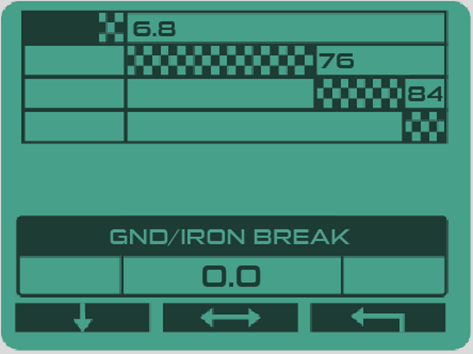
Some ferrous materials—due to corrosion or localized mineralization—may partially fall into the negative ground ID range. This can cause sound interruptions and make it harder to clearly identify iron objects, as their low tones are cut off.
The Ground/IRON Break setting allows you to fine-tune the threshold above which low tones are heard, increasing your efficiency in identifying ferrous targets.
To access this setting:
Go to the MULTI TONES screen, press the upper-left button on your remote until the Ground/IRON Break setting appears, then adjust it from 0.0 to -6.4.
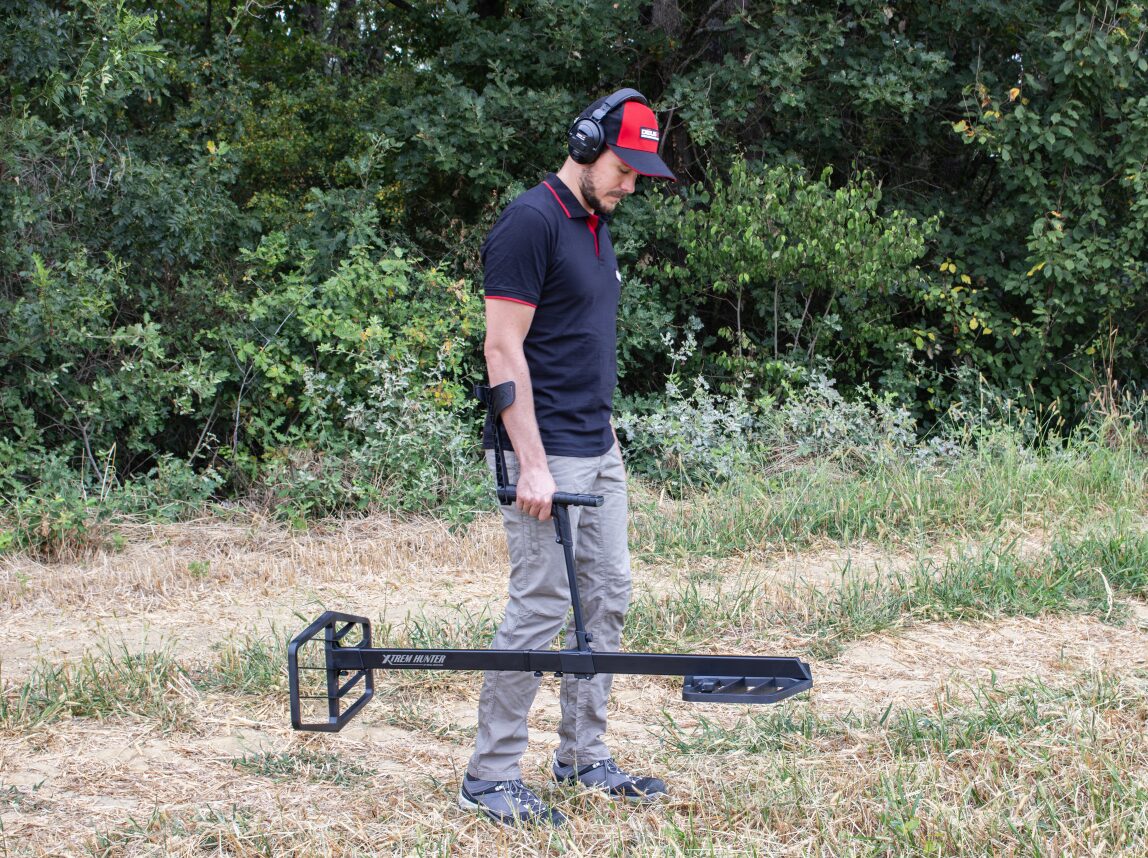
New "PULSE" Audio Type for the Xtrem Hunter
This new audio type offers enhanced sound dynamics and improved detection of deep targets.
Note: It is only available through headphones when using the Xtrem Hunter deep-seeking accessory.
WS6 AND WSAII / WSAIIXL HEADPHONES
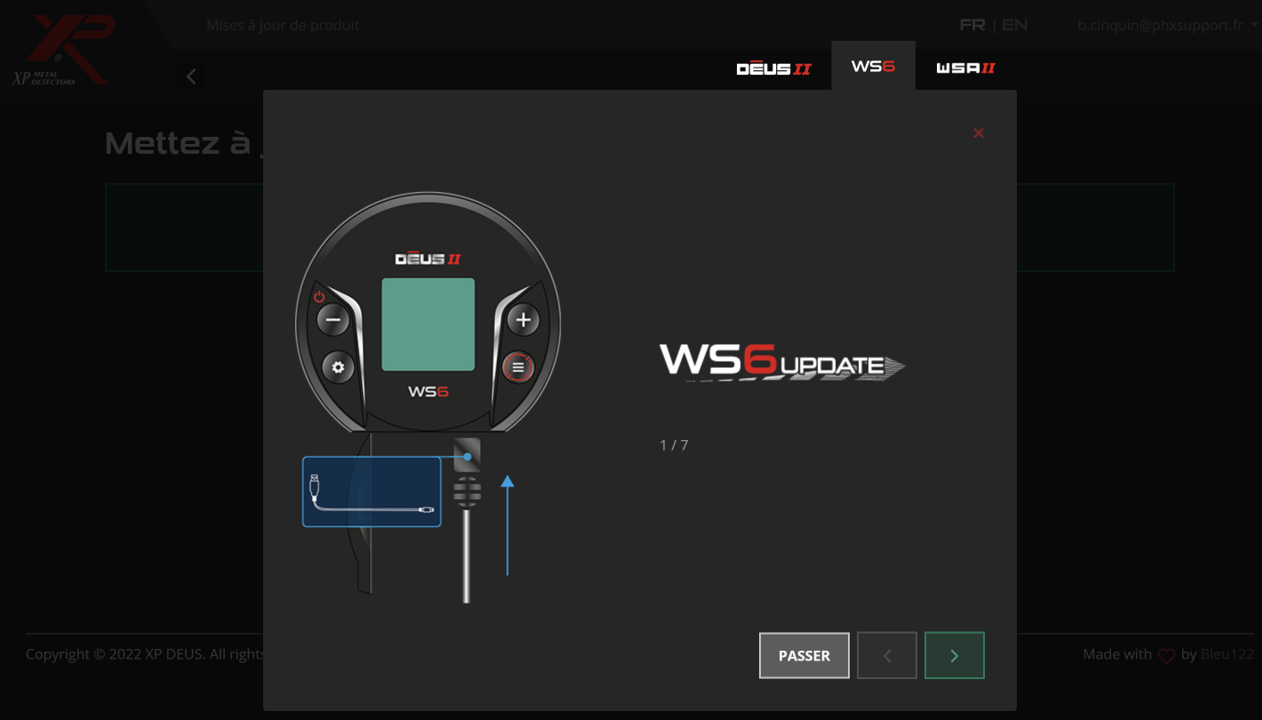
Please note that it is mandatory to update your WS6, WSAII and WSAII XL wireless headphones to the same version as the remote control, otherwise they will not work.
CUSTOMISED USER PROGRAMS
update nowVIDEOS
1- Access the updater:
Visit XP’s official online updater page from your computer (preferably using Google Chrome or Microsoft Edge).
2- Connect your remote control:
Use the USB cable to connect the remote to your computer. Make sure it is turned on.
3- Select your device:
At the top of the updater page, choose the appropriate tab :
4- Follow the on-screen instructions:
The updater will guide you step by step. If you are updating the headphones, you will need to put them in update mode by following the instructions provided.
5- Update all devices to the same version:
Make sure your remote, headphones, and any other accessories are all updated to the same firmware version; otherwise, they will not work together properly.